A week ago I ran into a problem. I started using more and more parallel workflows and more and more terminal tabs. I use Ghostty, but keeping up with that many tabs - even with its pretty solid UX - became simply impossible. I had 3 - 4 windows open with two to four tabs each running in parallel, and the entire workflow depended purely on window order and which one was currently in focus. For working with agents across multiple projects and multiple clients simultaneously - that approach just doesn’t work anymore.
I tried Cmux - a new terminal emulator built on top of Ghostty - but it’s still rough around the edges: no native tabs, ugly UI, no blur. The concept is solid, but the implementation needs more time. That said, I know plenty of people who are very happy with cmux - if you’re not as picky about UI/UX as I am, you’ll really like its workspace-based model: each workspace is a separate tab with a single terminal session. You could also try Codex App, but since I have my own agent, I didn’t want to switch to a desktop Electron app lacking the features I need just because I couldn’t manage my windows properly. The solution for me turned out to be tiling window managers, which I’d been wanting to try for a long time.
What is a tiling window manager
A tiling window manager is something that came from Linux. It’s a non-traditional window management system: instead of manually dragging and resizing windows, the window manager does all of that for you using various algorithms when a window is opened or its boundaries change. You say: I have X windows, I want them to fill the entire screen in the most convenient arrangement without overlap - and the manager does it for you. A tiling WM simply won’t allow a single pixel of empty space on the screen: it constantly resizes windows so they stay snapped together with a sensible distribution.
On Mac there are only three options, because macOS has serious limitations - you can’t replace the window manager entirely like you can on Linux. Your experience will always be second-rate compared to Linux, but there are working solutions.
The main macOS bug you need to know about
There’s a major bug in macOS that will seriously affect your workflow. That’s exactly why I say the experience is second-rate. All native tabs in macOS apps are treated as new windows by window managers - there’s no way to tell whether it’s a tab or a window. macOS always sends a signal that a new window was opened, even if what actually happened was a new tab opening in an existing window. This means your tiling WM will treat all open tabs as new windows, and empty space will keep multiplying on your screen depending on how many tabs you have open.
There’s no fix for this, and any app using native macOS tabs will behave badly in a tiling WM. Ghostty uses native tabs - which is exactly why I had to ditch the tab concept in my terminal entirely.
My current workflow
I disabled tabs in Ghostty and even the window affordances, and moved as fully as possible to keyboard-driven control - part of a broader focus on moving away from the mouse. Right now I can’t even see the close and minimize buttons in my terminal. Other apps keep them - like Android Studio, which spams modal windows and needs to be maximized to full screen, or Telegram, which I want to float on top of everything.
For the terminal, I open, close, and minimize windows with hotkeys that are flexibly configured in Ghostty. The screen splitting logic works like this:
- I open the first terminal - it takes up the full screen.
- I open a second one via
CMD+N- the space immediately splits in half, each terminal takes exactly 50%. - I open a third window - the half where focus was splits again. The new terminal opens in the same folder I was in at the moment of opening.
- Each additional window divides the space using the golden ratio principle (Binary Space Partitioning): depending on whether there’s more horizontal or vertical space in that particular section of the screen.
This lets you spawn child windows from a single window in the same directory and launch things like Vim or multiple copies of a dev agent inside them.
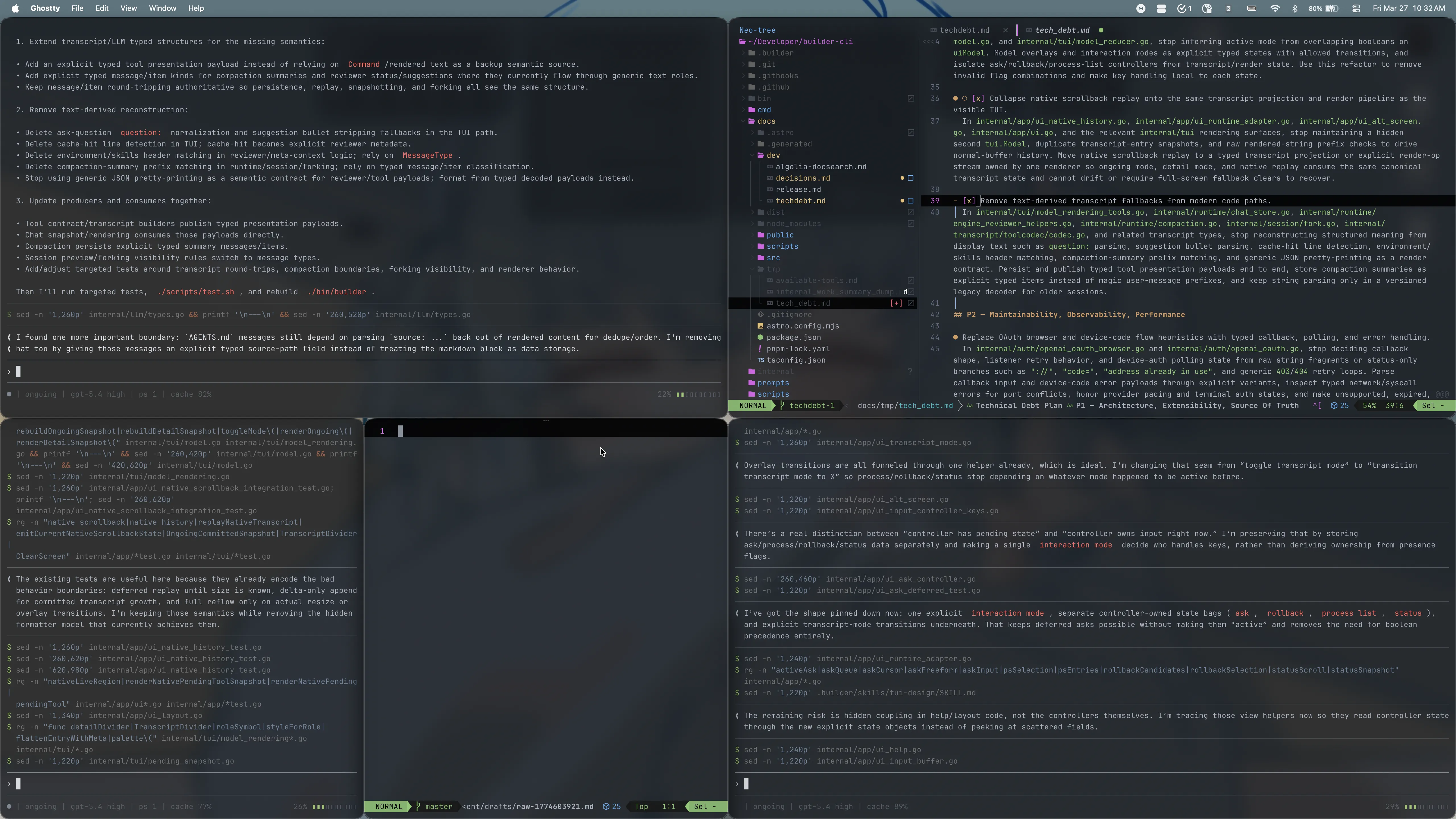
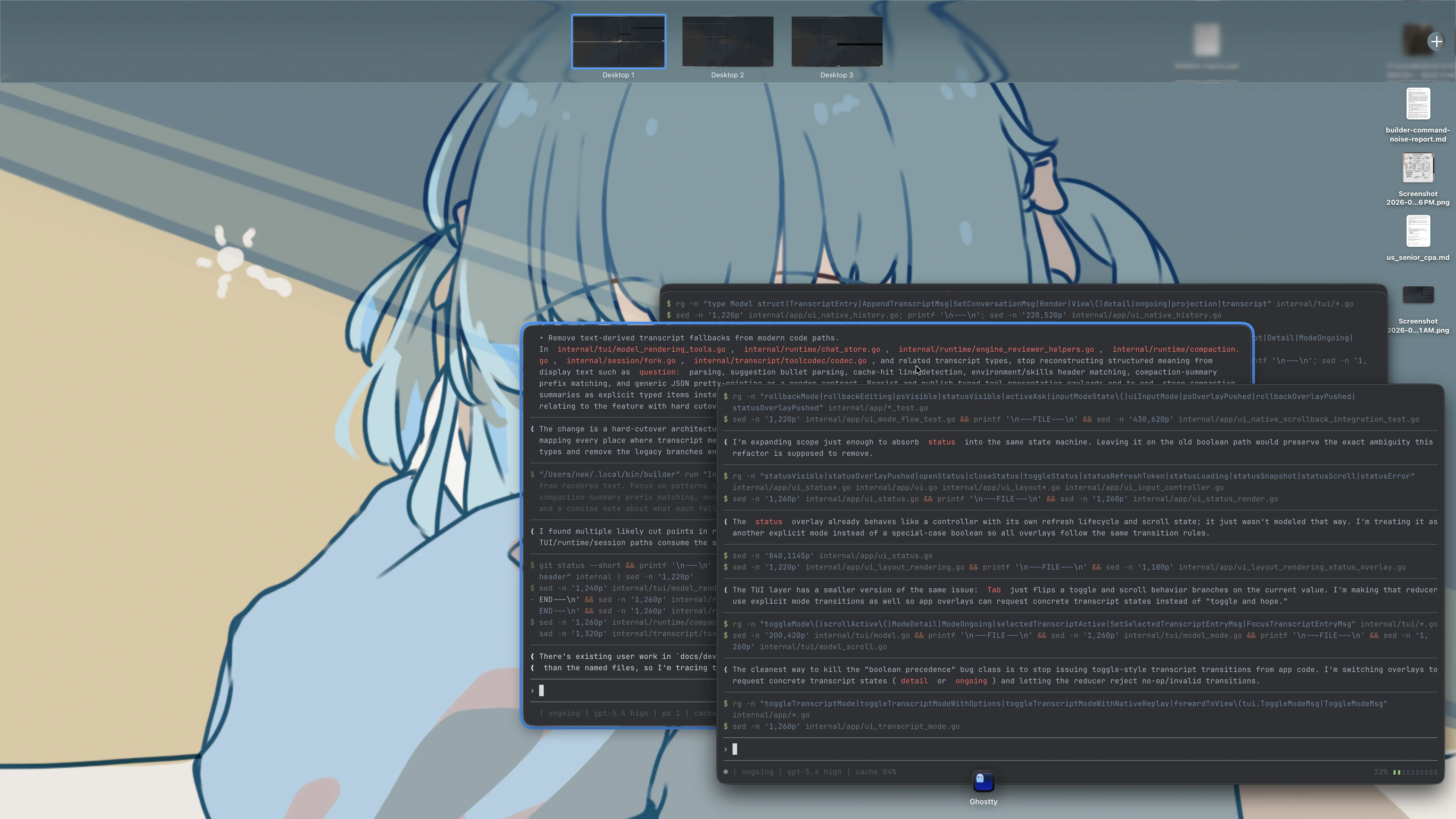
At some point, as you can see in the screenshot above, I’m already close to the limit of what my brain can handle. So I separate workflows by project using standard macOS Spaces: a dedicated Space for my agent, for Respawn, for each client project - and one extra for general tasks.
Three tiling WM options for macOS
One thing upfront: all the configuration was done for me by my assistant OpenClaw, not by me. Tiling window managers are a pretty niche product aimed at developers - configuration is done via YAML files in various folders or through bash macros for hotkey management. I would have taken forever figuring it out on my own.
Aerospace
The first option I wanted to try. It has a fairly convenient YAML configuration, though I still couldn’t be bothered to dig into it. It’s a clone of the i3 window manager from Linux - those who know, know.
The main problem for me: it’s manual. Opening any window doesn’t trigger an automatic relayout of the rest. I needed the window manager to handle all windows for me automatically, so I had to drop Aerospace.
That said, it’s stable, highly configurable, it has handy workspace functionality with fast switching and even some semblance of a user interface on Mac. Aerospace has window groups, each with its own layout mode. One group is split vertically into columns, another is split horizontally in half, a third isn’t split at all. You manage them manually through hotkeys. The concept is really cool if you’re willing to learn how to work with them and memorize all the necessary hotkeys. If you’ve already used a tiling WM on Linux - I’d recommend Aerospace first, it’s the closest thing to a proper professional window manager experience on macOS.
Amethyst
A completely different approach - more simplified and user-friendly. Amethyst has a full graphical interface via an icon in the menu bar, where you can configure everything, though YAML configs are also supported and take priority.
For me the biggest issue was that it doesn’t support mouse control - everything is keyboard only. Sometimes my layout is complex enough that I just want to drag a window with the mouse instead of fumbling with arrow key combos. It also has poor support for modal windows and dialogs - they’re treated as separate windows, and when a tiny “Do you want to send a voice message?” popup appears in Telegram, the entire screen gets wrecked: all windows shuffle around to make room for it. So I just stopped using it. But I’d recommend trying Amethyst first if you want to get into the world of tiling WMs - the GUI makes the entry point much gentler.
Yabai
The last contender, and the one I settled on. As far as I know, it’s the oldest tiling WM project on macOS. It supports the Fibonacci layout (Binary Space Partitioning) that I wanted, and generally has all the features of the previous two combined.
Two downsides. First, Yabai has no graphical interface at all - all configuration is through bash scripts and shell commands, it runs as a background service, and it’s started and stopped via the terminal. On one hand, that’s a barrier to entry; on the other, I just told my OpenClaw to set up the configuration I needed, and it set everything up in 10 seconds. A one-time setup overhead is much better than tolerating some other persistent bug.
Second, Yabai has no built-in hotkey support - you need a separate utility that translates hotkeys into shell commands. OpenClaw recommended skhd. I honestly don’t even care what that is - I just asked the agent to set everything up and sent it a list of the hotkeys I needed, and it was all ready in a minute. An unexpected bonus of yabai was that it works really well with AI agents: my Gemini already knew absolutely everything about its configuration options, so setting it up from a single voice message in Telegram took 10 seconds.
Yabai has a lot going for it. Beyond supporting all the features I needed, it has a handy visual highlight when dragging windows with the mouse: you can immediately see exactly how the space will be split and where the window will end up. This makes mouse-based rearranging so simple and intuitive that, I’ll admit, I now often skip the hotkeys and just use the mouse.
Additionally, Yabai supports extended features when you partially disable macOS system security - you can remove shadows, rounded corners, and the slow transition animations between Spaces. The main advantage - it uses native macOS Spaces instead of its own, which means support for different Spaces on different monitors. All the other options require you to disable this feature or they break. I didn’t install the system extensions myself: every update requires a reboot and re-disabling security, which is more annoying than the slow animations.
Yabai can also be disabled with a single shell command - handy when you want to play games or let someone else use the computer.
If you have an agent that can configure everything for you and you want the best option with maximum control - go with Yabai. But I wouldn’t install it just to try it out: by default it ships with no configuration and barely works until you create the config files.
Conclusion
Will I keep using a tiling window manager? Absolutely - at least until the problem of managing dozens of windows while working with agents gets solved. Maybe cmux will get polished up and I’ll switch to that, but every day I like tiling WM more, and I notice I’m using the mouse less and less. I’ll never go back to native macOS features like Stage Manager - objectively, that thing is unusable.